

Designing QR Codes That Scan: A Practical Guide
Color, size, quiet zone and error correction: the rules for QR codes that scan reliably in print and on screen.
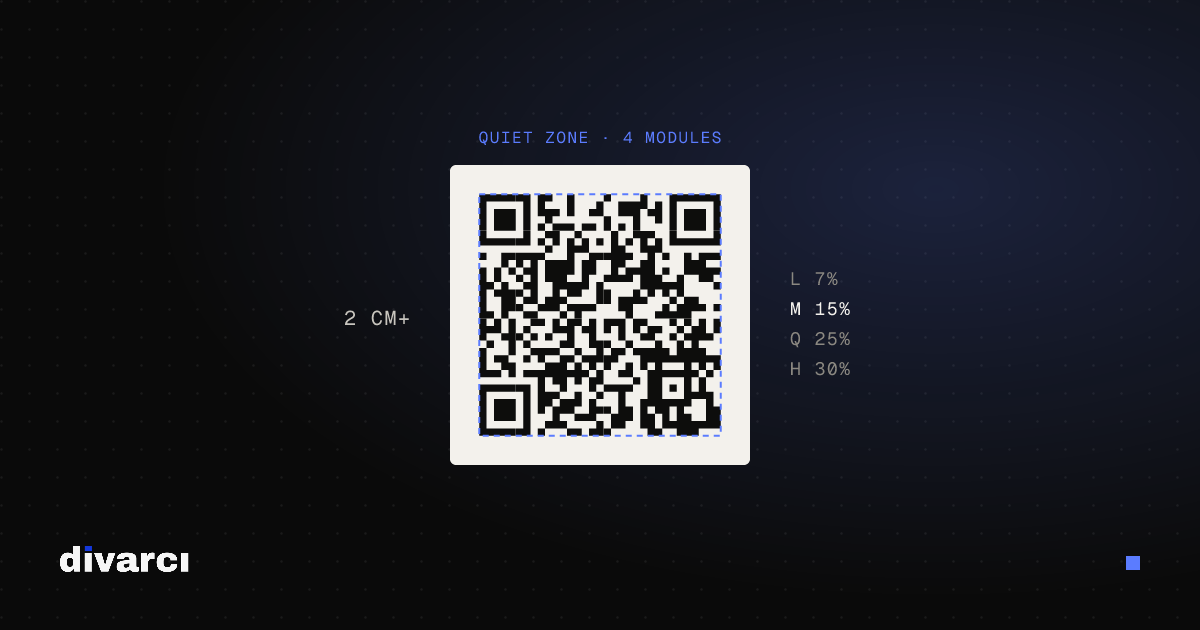
QR codes are everywhere now: menus, business cards, packaging and posters. But codes recolored, shrunk or topped with a logo to fit a design often stop scanning. A QR code that doesn't scan is worse than none: people try once and give up.
1. Dark code, light background
Phone cameras read a QR code from the difference between dark and light modules. The safest combination is a dark code on a light background. You can use your brand color, but the code must be clearly darker than its background.
- A light code on a dark background (inverted QR) fails on some readers.
- Pastels and low-contrast pairs slow scanning down.
- Avoid placing codes on gradients and photos.
2. Keep the quiet zone
A QR code needs an empty margin around it in a color different from the code. The standard defines this as 4 modules (four times the smallest square in the code). Pushing the code against a frame, text or another image makes it harder for the reader to find its edges.
3. Size it for the scanning distance
A practical rule is that the code's width should be about one tenth of the scanning distance. For a business card or menu held in hand, at least 2 × 2 cm (about 0.8 in) is recommended; a poster read from a few meters away needs a much larger code.
4. Keep the content short
The more data you put into a QR code, the smaller and denser its modules become. A short address instead of a long link gives a code that scans more easily at the same print size.
5. Choose the error correction level deliberately
QR codes carry redundant data so they can still be read when partly damaged:
| Level | Recoverable | When |
|---|---|---|
| L | ~7% | Codes shown on screens in clean conditions |
| M | ~15% | The default for most uses |
| Q | ~25% | Prints that may get worn |
| H | ~30% | Codes with a logo in the middle |
Higher levels make the code denser, so don't pick a higher level than you need.
6. Use vector for print
Use a vector format such as SVG for QR codes going to print. Enlarging a small PNG blurs the edges and makes scanning harder.
7. Test before printing
Try the code with phones from different brands, close up and from a distance, and in low light. If you get a print proof, test on paper rather than on screen.
With the Vector QR Code Generator you can create link, Wi-Fi, vCard and other QR codes, adjust colors, margin and error correction, and download SVG or PNG. The tool warns you when contrast is too low.
More posts
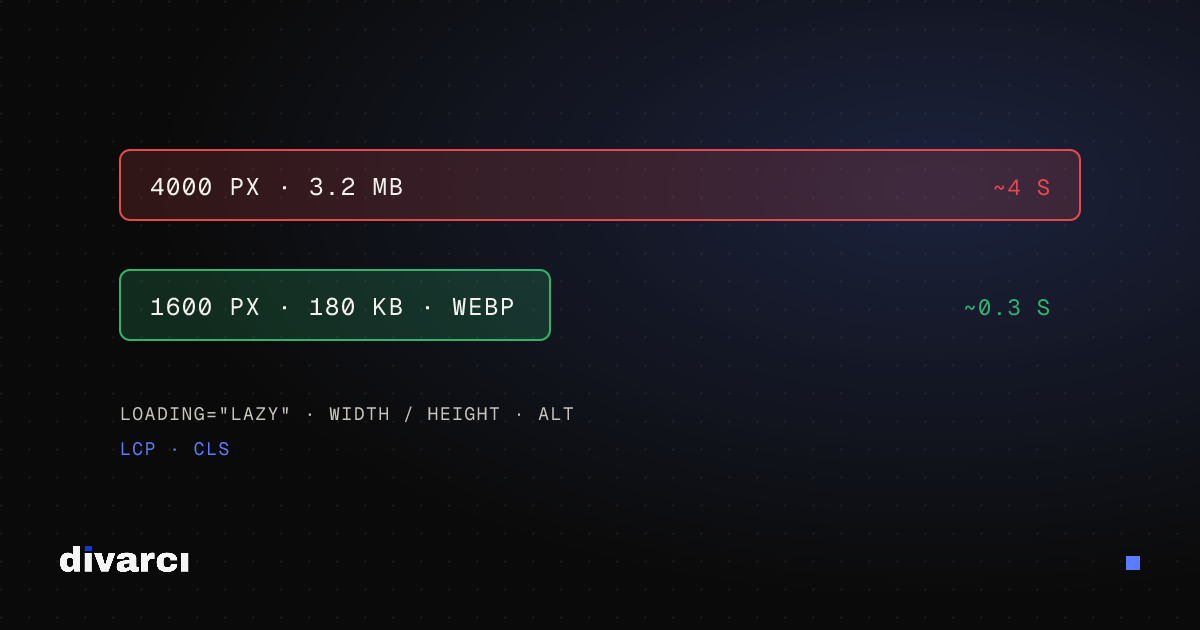
Optimizing Images for Websites: A Guide to Faster Pages
Prepare your website images with the right size, format and compression so pages load faster and perform better in search.
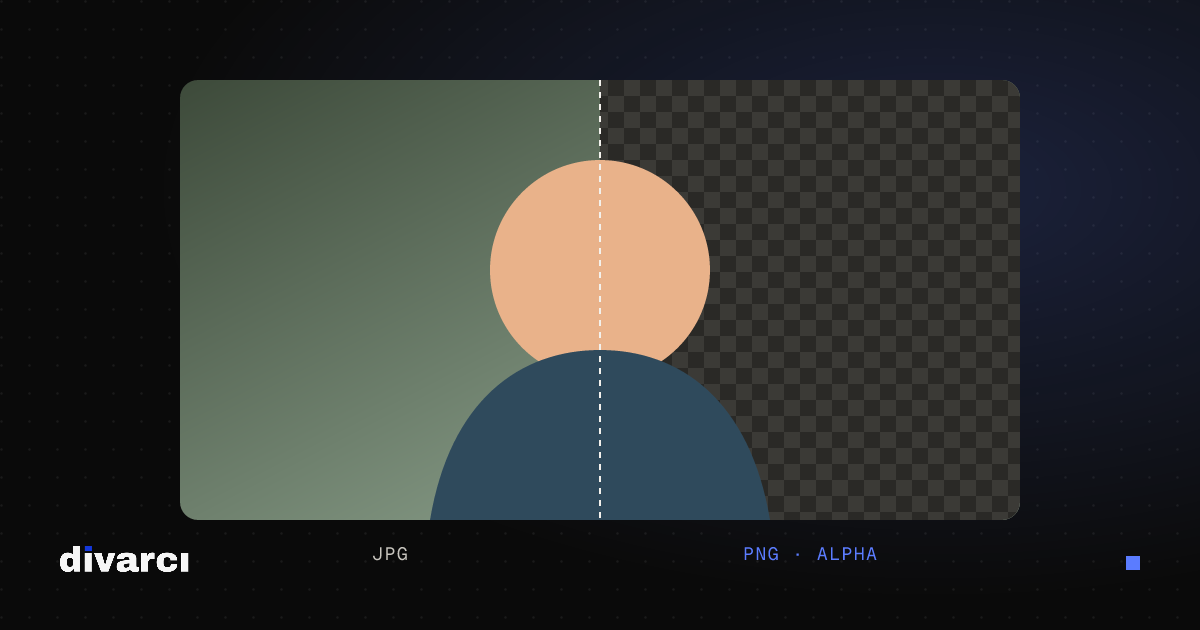
How to Remove a Photo Background: A Practical Guide to Transparent PNGs
Shooting tips for clean background removal, edge settings, manual touch-ups and saving a transparent image in the right format.
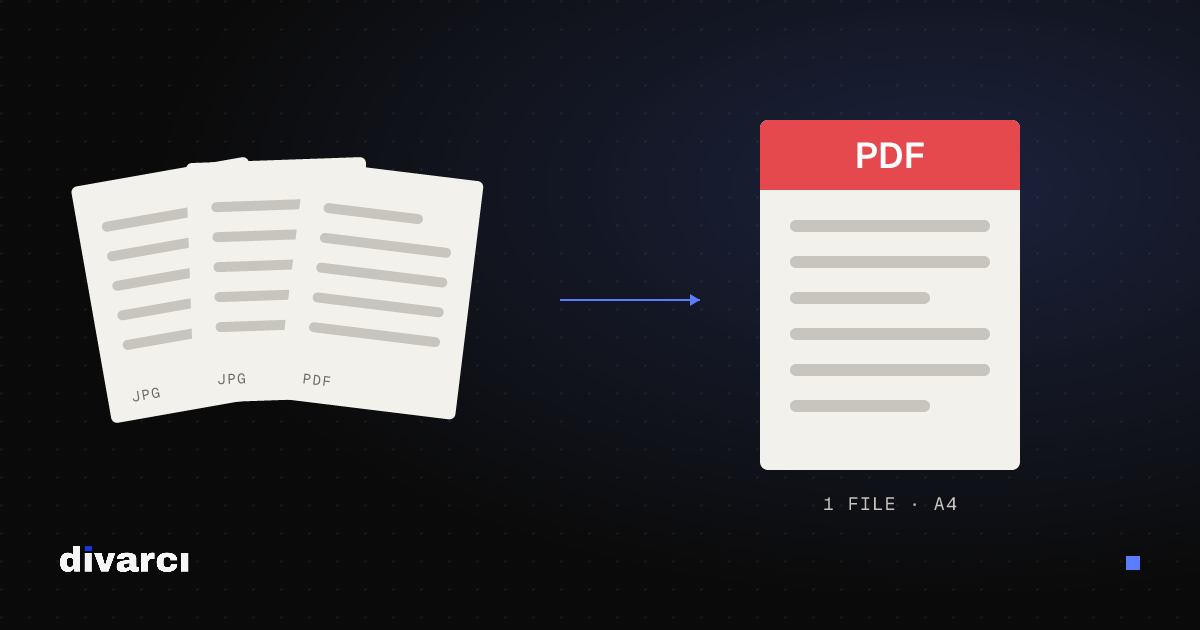
Putting Documents into One PDF: Photos to PDF, Merging and Splitting
Turning documents photographed with a phone into a PDF, merging several PDFs and removing pages you don't need, for applications, email or archiving.