

Putting Documents into One PDF: Photos to PDF, Merging and Splitting
Turning documents photographed with a phone into a PDF, merging several PDFs and removing pages you don't need, for applications, email or archiving.
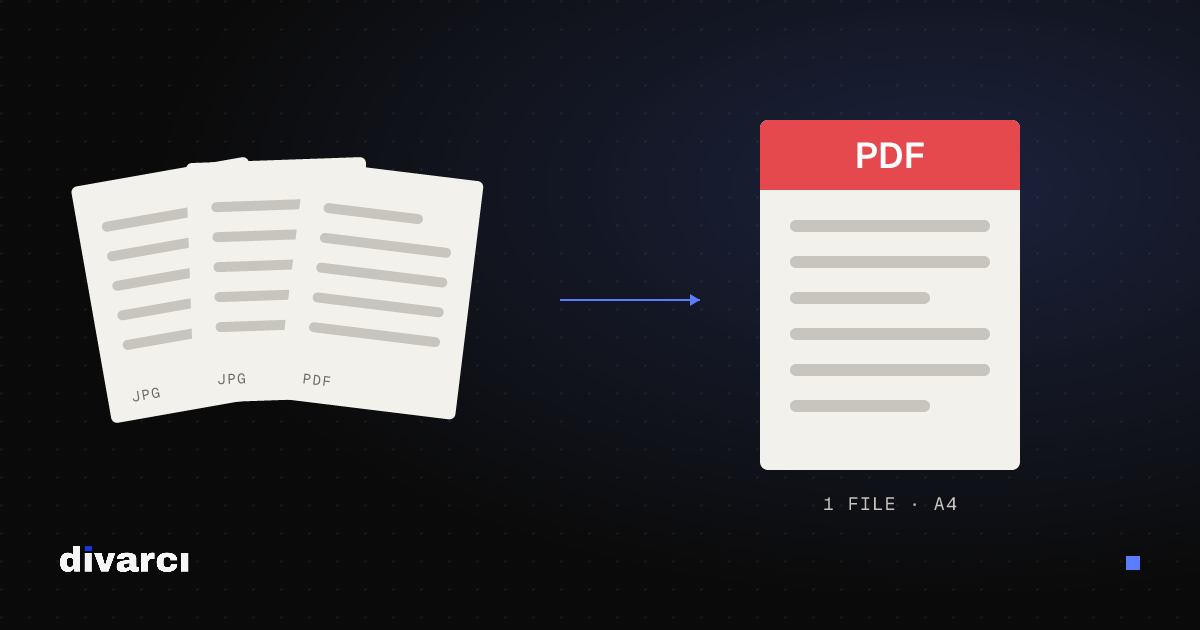
Job applications, school enrollment, visas and official procedures often ask for a single PDF. What you usually have is a few photos taken with a phone and several separate PDFs. The steps below gather them into one tidy, legible file.
1. Photograph documents properly
PDF quality starts with photo quality:
- Place the document on a flat, dark surface so its edges stand out.
- Shoot in daylight or good light without flash; flash causes glare.
- Hold the phone parallel to the document; an angled shot makes text slanted and hard to read.
- Make sure the whole document is in frame and the text is sharp.
2. Crop away the edges
Removing anything that isn't the document, such as the table, fingers or shadows, makes the file look more professional and smaller. Crop and straighten photos with the Image Cropper.
3. Turn the photos into a PDF
You can combine several photos into one PDF in order. Choosing A4 (or Letter) page size for official documents keeps the file looking right when printed. The JPG to PDF tool puts JPG, PNG, WEBP and GIF images into one PDF and adds JPG images without recompressing them.
4. Merge PDFs
If you have separate PDFs (a diploma, an ID copy, a résumé), merge them into one file in the required order. In Merge PDF you can reorder files and see the total page count.
5. Remove pages you don't need
Sometimes you need just one page, or want to drop blank pages from a file. With Split PDF you can extract selected pages into a new PDF, delete unwanted pages or turn every page into its own file.
6. Check the file size
Application systems and email services usually limit file size; check the limit on the page you're uploading to. Phone photos can be very large, so shrinking them with the Image Compressor before converting helps keep the PDF under the limit.
Privacy
Be careful before uploading personal documents such as IDs, diplomas or medical reports to sites you don't know. All of the tools here run in your browser; your documents are never sent to a server.
Final check
- Are the pages in the right order?
- Is every page upright and legible?
- Is the file name clear? (e.g. firstname-lastname-application.pdf)
- Is the file under the required size limit?
More posts

Optimizing Images for Websites: A Guide to Faster Pages
Prepare your website images with the right size, format and compression so pages load faster and perform better in search.
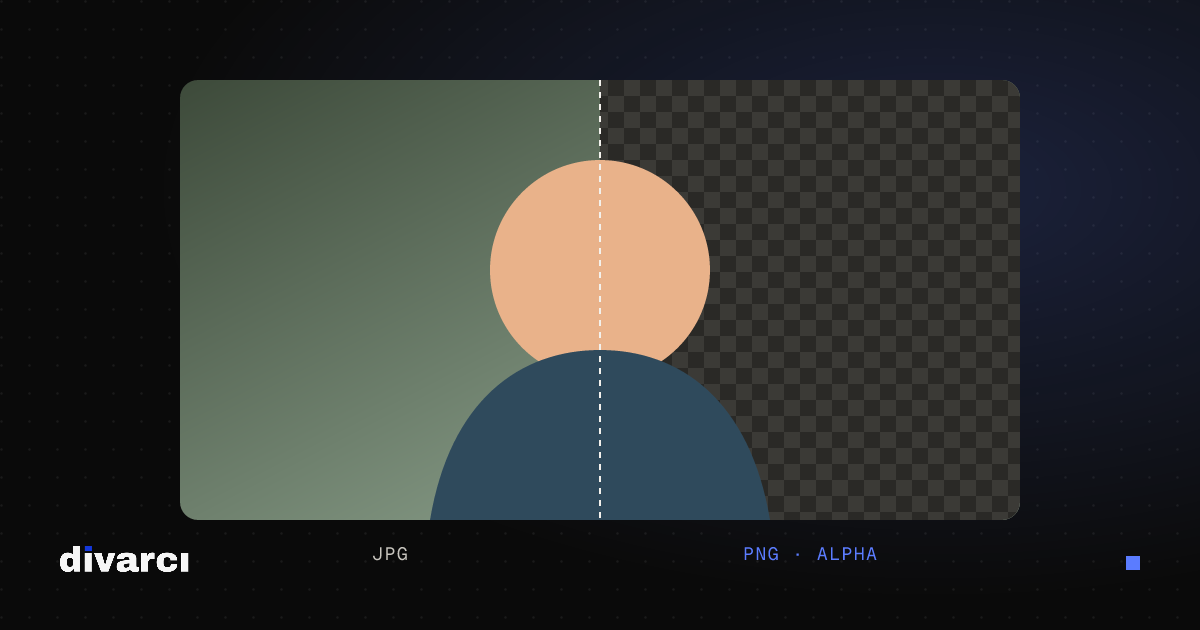
How to Remove a Photo Background: A Practical Guide to Transparent PNGs
Shooting tips for clean background removal, edge settings, manual touch-ups and saving a transparent image in the right format.

What Is a Type Scale? Heading Sizes, Line Height and Line Length
Setting heading and text sizes with a ratio instead of guesswork: modular scales, line height, ideal line length and fluid type sizes.