

Automatically Cut Silent Parts From a Video (Jump Cuts)
Remove the pauses in talking videos with one click; threshold and length settings keep the pace natural.
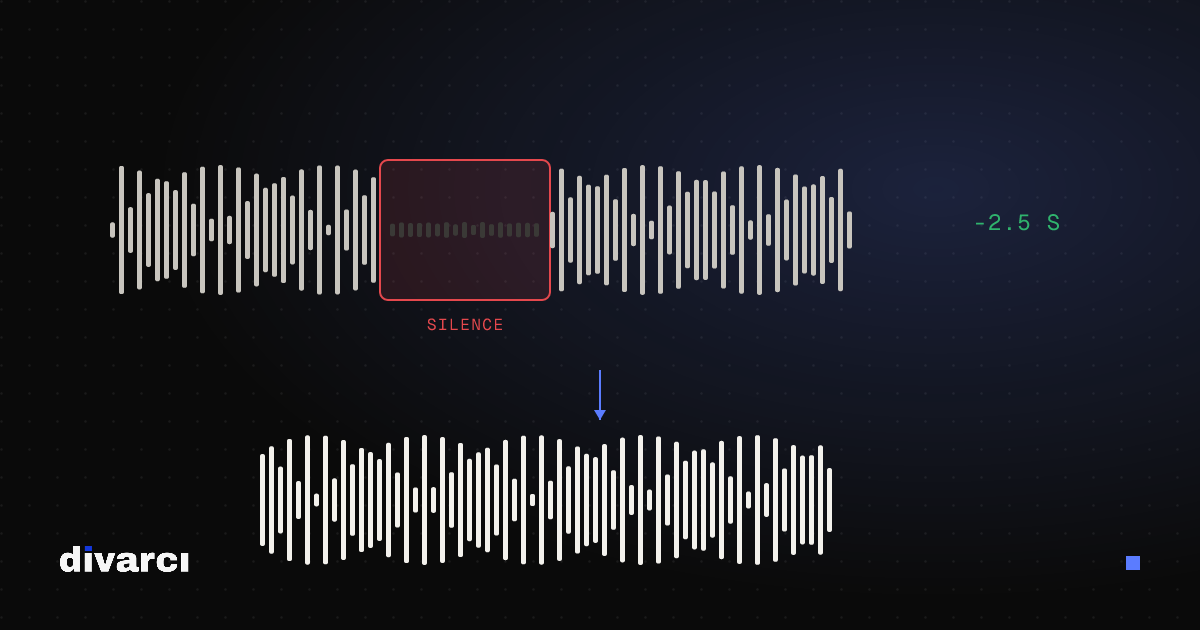
In videos where someone talks to the camera, the pauses between sentences slow everything down, and finding them by hand takes a long time. Cut silences in the video editor analyses the audio and removes the silent parts in one go.
How to do it
- Add the video to the editor and click the clip on the timeline.
- Find the Cut silences section in the right panel.
- Set the Silence threshold and the Shortest silence.
- Press Remove silent parts.
The clip is split into the spoken parts and the gaps close. If you don't like the result, undo with Ctrl+Z (⌘+Z on a Mac).
What the settings do
- Silence threshold (dB): audio below this level counts as silence. With more background noise, raise it (for example −35 dB instead of −40).
- Shortest silence: pauses shorter than this are kept. 0.5 seconds leaves a natural pace; lower it for a faster edit.
A short margin is kept before and after speech so the cuts don't clip words.
Afterwards
- Create automatic captions after cutting; they follow the new timing.
- If the picture jumps between cuts, add a slight zoom to the clip or a Punch zoom effect to some parts.
- The feature is off for reversed or speed-ramped clips.
More in the video editor guide.
More posts
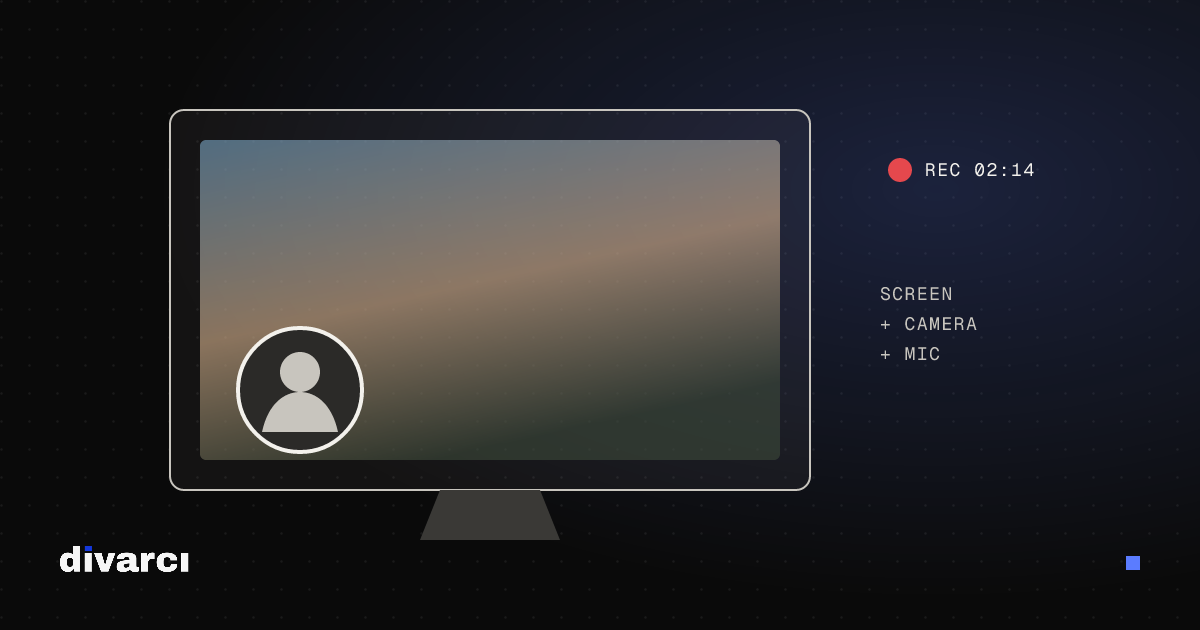
Record Your Screen and Edit It: With Camera and Voice-Over
Record your screen and camera without installing anything, then trim and add text and a voice-over in the same editor.
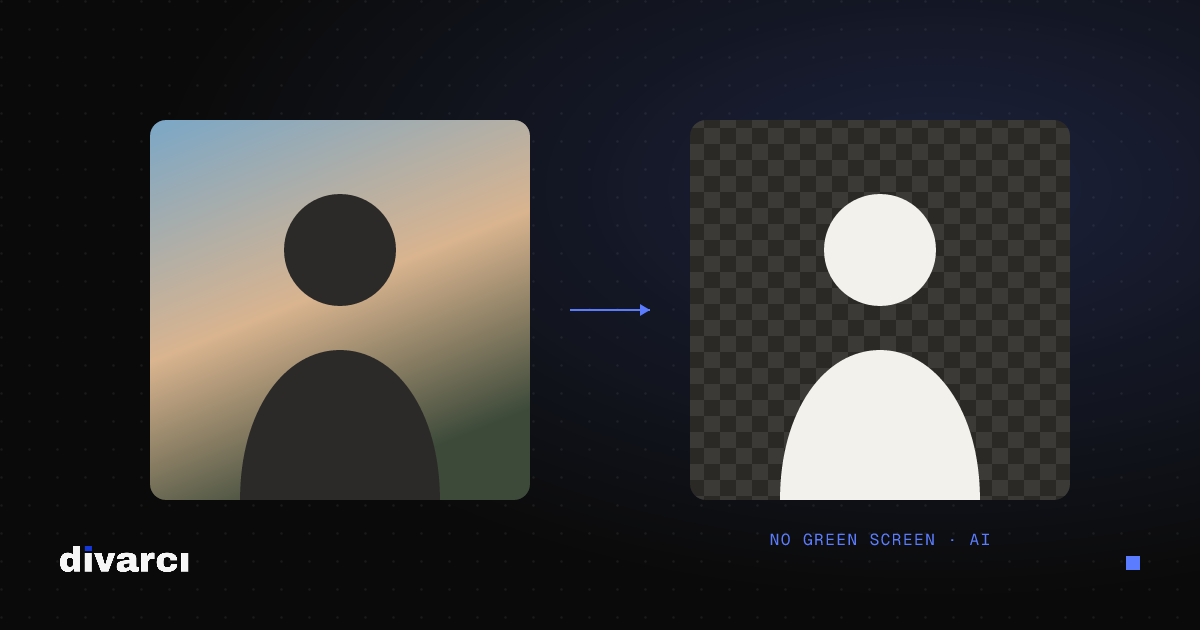
Remove a Video Background Without a Green Screen
Separate the person or object in a video from its background with AI and replace it with a blurred, solid or gradient background.
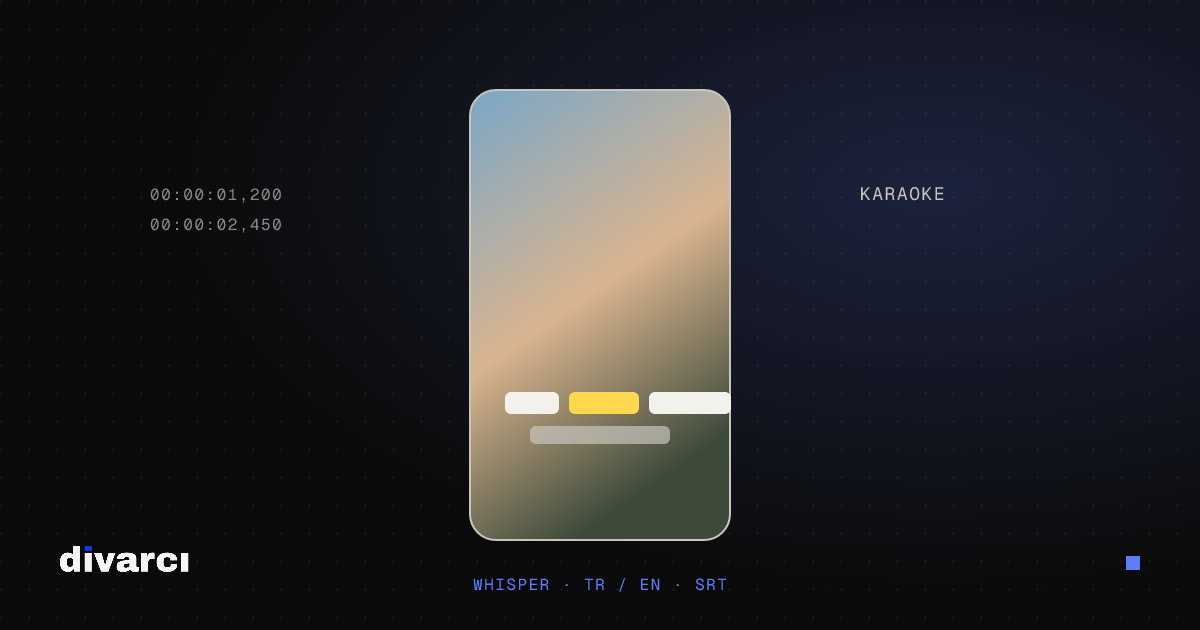
Add Automatic Captions to a Video: Free and in Your Browser
Automatic captions that transcribe speech, a karaoke style and SRT files, without your audio leaving your computer.