

Remove a Video Background Without a Green Screen
Separate the person or object in a video from its background with AI and replace it with a blurred, solid or gradient background.
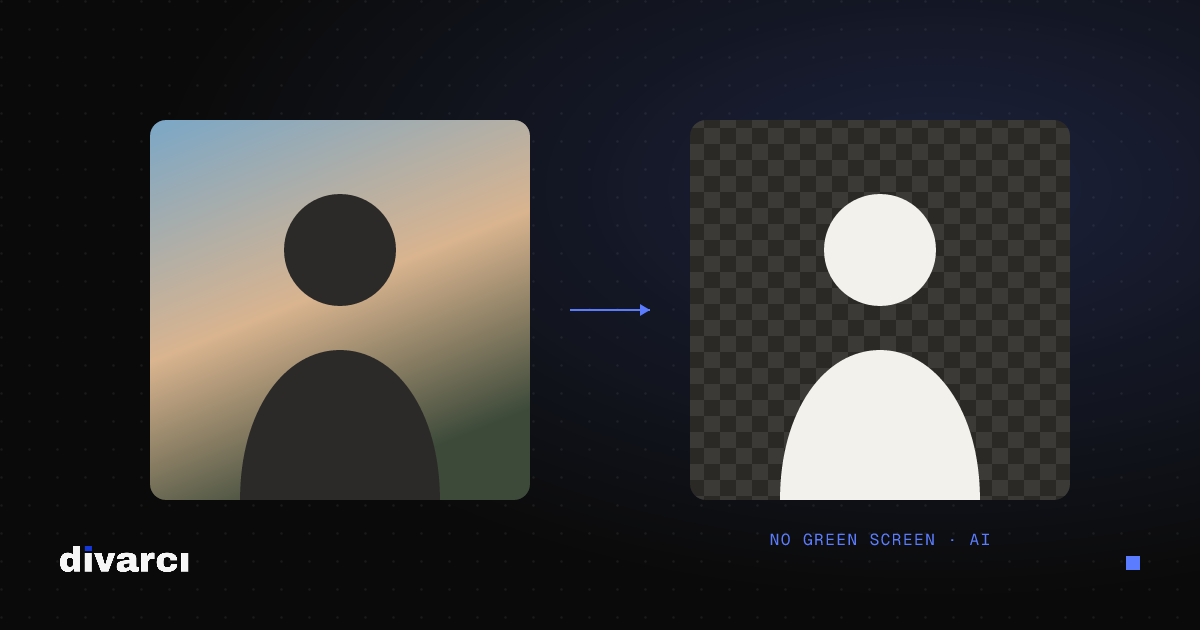
Changing a background usually needs a green screen. The video editor can separate the main subject in the picture with AI, so videos shot in an ordinary room can get a new background too. Processing happens on your computer; the video is not uploaded.
Removing the background of the main clip
- Add the video and click the clip.
- Turn on Remove background (AI) in the right panel. A small model (about 4.6 MB) is downloaded on first use.
- With no clip selected, choose the new background with Empty space in the Project settings: Blur (a portrait effect), Color or Gradient.
Placing it over another video
To put the person in front of other footage, add the video as a layer with Elements → Add a logo, image or video and turn on Remove background in the layer settings. The video underneath becomes the new background. Size, position and shape are set in the same panel.
Good to know
- The model separates the most prominent subject; a simple background and good light improve the result.
- In the preview the mask follows with a short delay. Export computes it for every frame, so it takes longer than usual.
- For footage shot against a green or blue screen, the Green screen option in the layer settings gives sharper edges.
See the video editor guide for every feature.
More posts
Record Your Screen and Edit It: With Camera and Voice-Over
Record your screen and camera without installing anything, then trim and add text and a voice-over in the same editor.
Automatically Cut Silent Parts From a Video (Jump Cuts)
Remove the pauses in talking videos with one click; threshold and length settings keep the pace natural.
Add Automatic Captions to a Video: Free and in Your Browser
Automatic captions that transcribe speech, a karaoke style and SRT files, without your audio leaving your computer.