

Record Your Screen and Edit It: With Camera and Voice-Over
Record your screen and camera without installing anything, then trim and add text and a voice-over in the same editor.
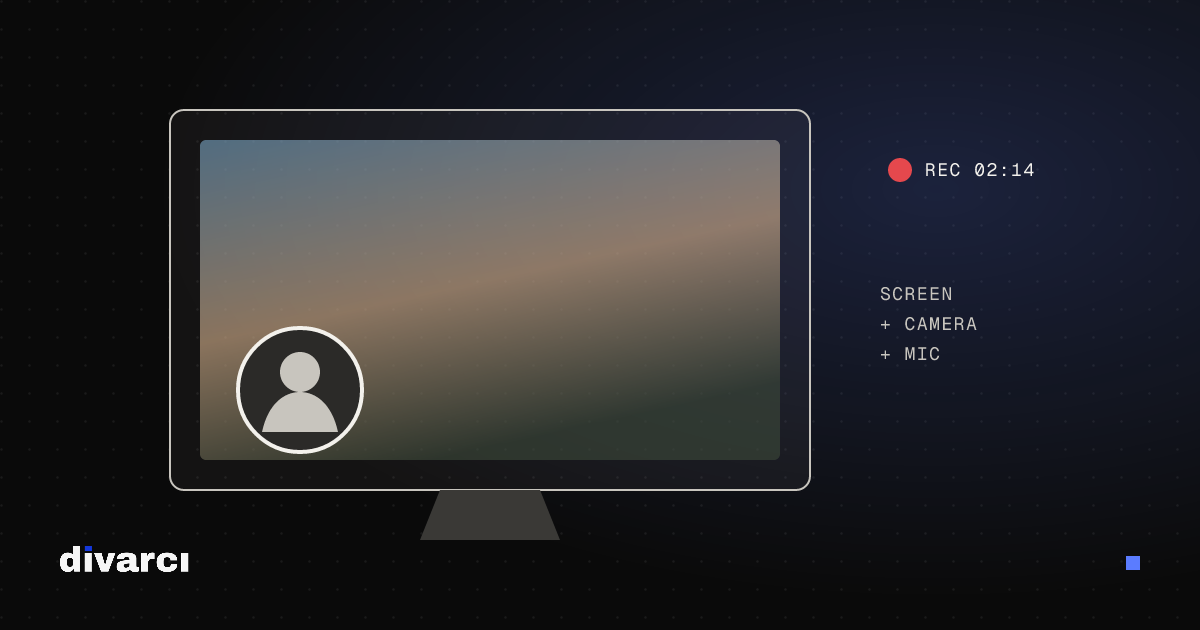
Screen recording is the quickest way to make tutorials, app demos and gameplay clips. The video editor records your screen and camera directly; when you stop, the recording lands on the timeline ready to edit. The recording stays on your device.
Recording the screen
- Press Record screen in the Media panel.
- In the browser's dialog, choose the entire screen, a window or a tab.
- While recording, the preview shows the live picture and the time. Press Stop to finish.
With Add the camera to screen recordings turned on, the camera is recorded at the same time and placed as a round layer in the corner of the screen recording. Change its position and size in the layer settings.
Recording the camera
Record camera records only the camera and microphone, which suits talking videos. Afterwards, Cut silences removes the pauses.
Adding a voice-over later
If you recorded the picture without sound, add narration later with Audio → Record a voice-over. Recording starts at the playhead while the video plays; use headphones to avoid echo. Lower music during speech turns the background music down automatically while you talk.
Browser permissions
The browser asks for permission to use the screen, camera and microphone. Without permission recording does not start; the rest of the editor keeps working. Screen recording is supported in desktop browsers.
More in the video editor guide.
More posts
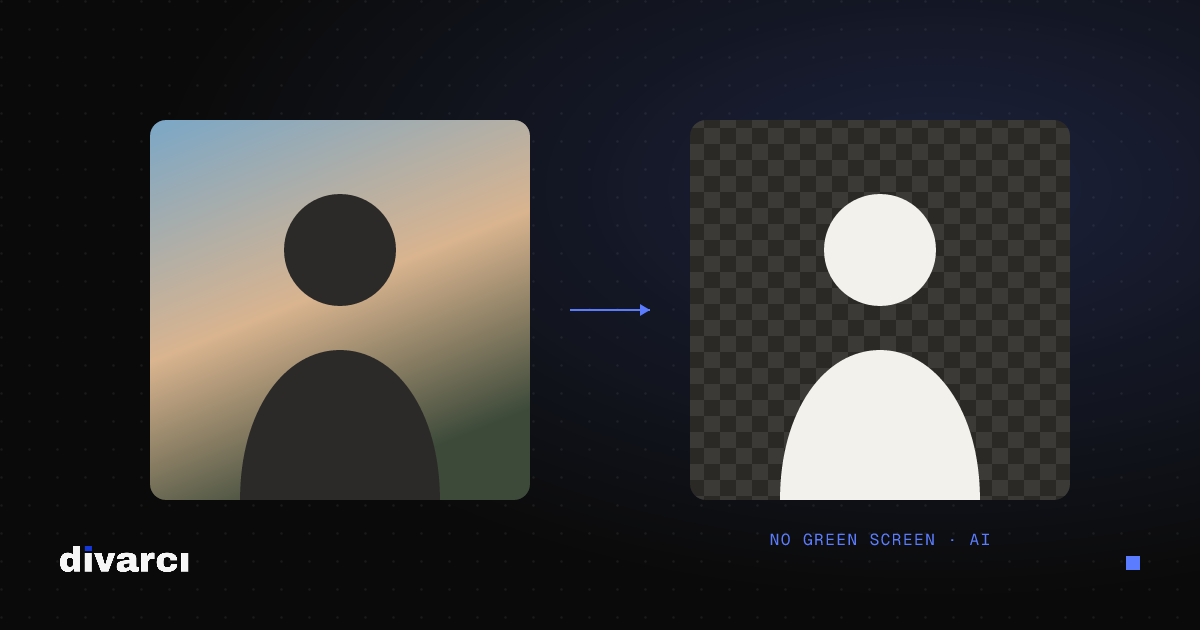
Remove a Video Background Without a Green Screen
Separate the person or object in a video from its background with AI and replace it with a blurred, solid or gradient background.
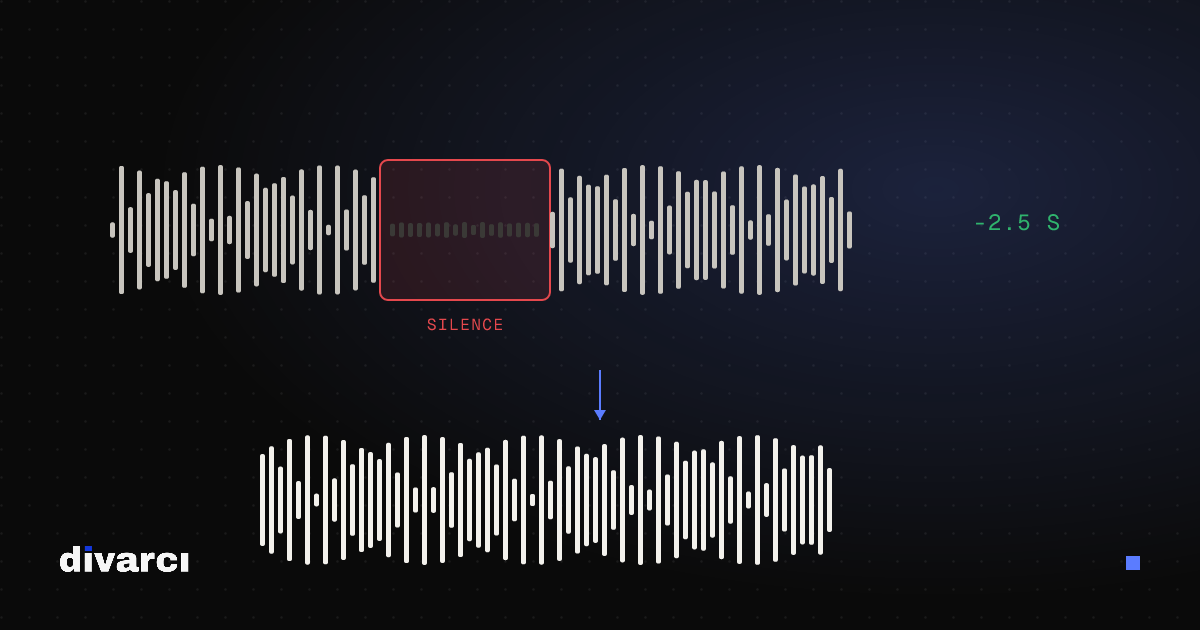
Automatically Cut Silent Parts From a Video (Jump Cuts)
Remove the pauses in talking videos with one click; threshold and length settings keep the pace natural.
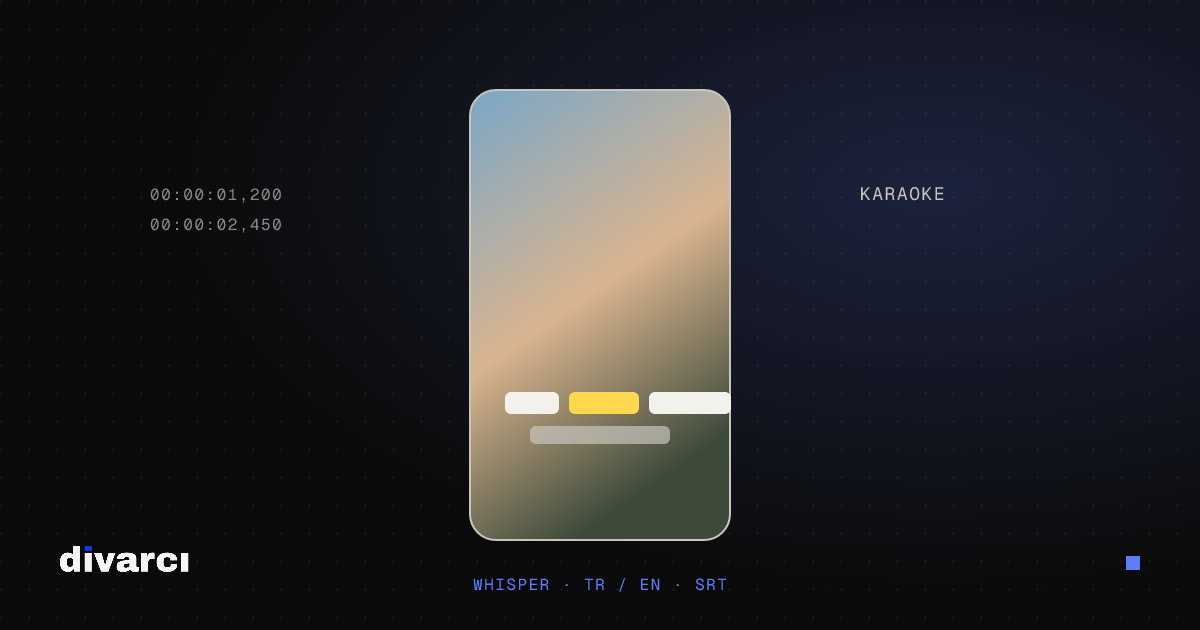
Add Automatic Captions to a Video: Free and in Your Browser
Automatic captions that transcribe speech, a karaoke style and SRT files, without your audio leaving your computer.