

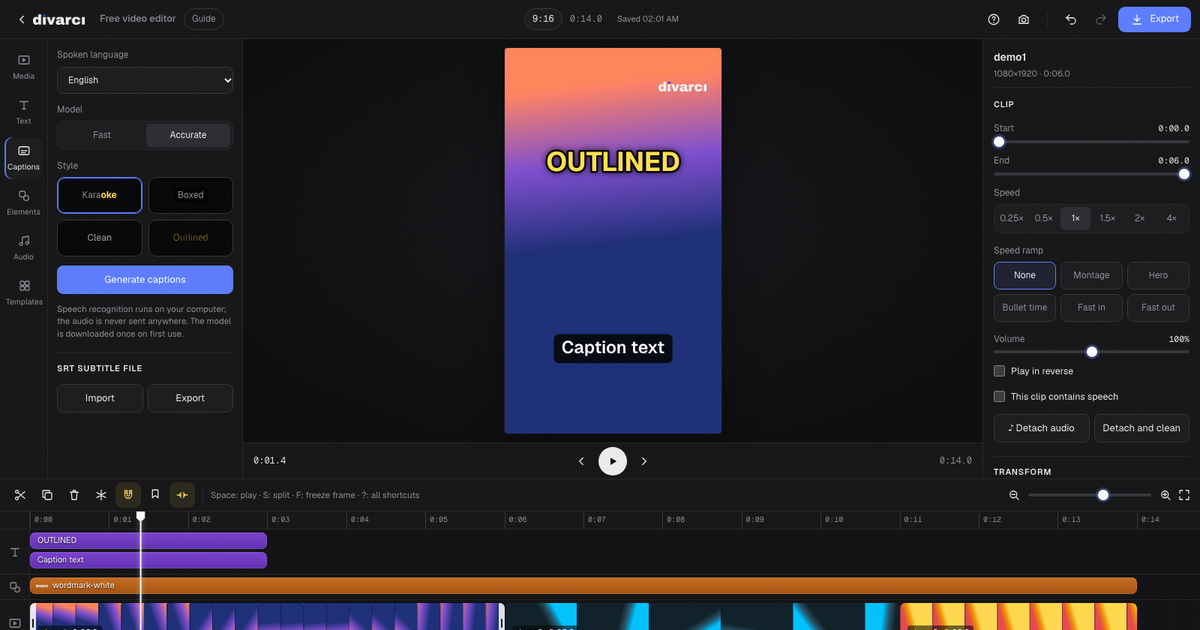
At a glance
- Price: free; no watermark on the output and no account needed.
- Privacy: videos, audio and images are processed on your device and never sent to a server.
- Platform: any up-to-date browser (Windows, macOS, Linux, ChromeOS, Android, iOS). Nothing to install; it can optionally be installed as an app.
- Output: MP4 (H.264 and AAC) at 720p, 1080p or 4K; 24, 30 or 60 fps. Also GIF, WAV audio and a JPG cover.
- Ratios: 9:16 (TikTok, Reels, Shorts), 4:5, 1:1 and 16:9 (YouTube).
Features
Editing and timeline
- A multi-track timeline with text, element, video and audio tracks
- Cut, split, duplicate, drag to reorder and trim
- Undo and redo, markers, magnet (snapping) and closing the gap after a deleted clip
- Freeze frame, speed from 0.25× to 4× and speed ramps (montage, hero, bullet time)
- Reverse playback and automatic removal of silent parts in talking videos
Picture
- Change the ratio with a blurred, solid color or gradient background
- Filters; brightness, contrast, saturation, warmth and vignette; .cube LUT support
- Transitions: dip, flash, dissolve, slide and zoom
- Effects: shake, punch zoom, glitch, RGB split, VHS, film grain and flicker
- Rotate, flip, zoom and crop
- AI background removal without a green screen; green screen (chroma key) as well
Text and captions
- Ready-made text styles and Google Fonts typefaces
- Outline, shadow, alignment, letter spacing and text animations
- Keyframe animation of position, scale, opacity and rotation
- Automatic captions: speech is transcribed on the device with the Whisper model (Turkish and English); karaoke style
- SRT subtitle import and export
Elements
- Logo, image or video layer (picture-in-picture)
- Emoji stickers
- Mosaic or blur censor areas to hide faces or plates
Audio
- Music, waveforms, fade in and fade out
- Voice-over recording with the microphone and detaching a video's sound to its own track
- Noise reduction and voice effects (high, deep, robot, phone, echo)
- Automatic music ducking during speech
- Sound effects generated in the browser (whoosh, pop, ding, censor bleep and more)
- Beat detection and fitting clips to the beat
Recording
- Screen recording, camera recording or both (camera in the corner of the screen recording)
Projects and use
- Automatic saving in the browser and continuing where you left off
- Saving a project with its videos as a .dvx file and opening it on another computer
- Templates, keyboard shortcuts and a phone-friendly layout
- Installable as an app and usable offline after the first visit
How to use it
The general flow for a short vertical video:
- Add media. Drag your videos and photos into the editor or choose them with “Import”. The first ones are placed on the timeline in order.
- Edit. Drag clips to reorder them, drag their edges to shorten them and press S at the playhead to split. In talking videos, “Remove silent parts” cleans up the pauses.
- Add text, captions and music. Pick a style in the Text panel, transcribe speech automatically in the Captions panel and add music or a voice-over in the Audio panel.
- Adjust the picture. Choose the ratio, filters, color, transitions and effects in the right panel. Turn on background removal or green screen when you need them.
- Export. Use “Export” to choose the format (MP4, GIF, WAV or a JPG cover), resolution and frame rate; the file is created on your device and downloaded.
Privacy and technical details
Videos are decoded and encoded with the browser's WebCodecs; automatic captions, background removal and audio processing run on the device with WebAssembly. The AI models are downloaded from this site on first use. Your project and files are stored only in this browser. If you pick a typeface from the Google Fonts list, that font's file is loaded from Google's servers. Video export needs WebCodecs support; the editor says so in browsers without it. How long a video you can process depends on your device's memory and speed.
Keyboard shortcuts
| Key | Action |
|---|---|
Space | Play / pause |
S | Split at the playhead |
Ctrl/⌘ + D | Duplicate |
Delete | Delete the selection |
Ctrl/⌘ + Z | Undo |
Ctrl/⌘ + Shift + Z | Redo |
← → | One frame back / forward |
Shift + ← → | One second back / forward |
F | Freeze frame |
M | Toggle the magnet |
B | Add a marker |
? | Shortcut list |
Frequently asked questions
Is the video editor really free?
Yes. Every feature is free, there is no subscription or trial, and exported videos carry no watermark.
Do I need an account?
No. Open the page and start editing.
Are my videos uploaded to a server?
No. Videos, audio and images are processed in the browser on your device. Automatic captions and background removal also run on the device; audio and pictures are not sent anywhere.
Can I use it on a phone?
Yes. On phones it uses a bottom tab bar and panels that slide up. Export needs WebCodecs support in the browser.
Is it suitable for TikTok, Reels and YouTube Shorts?
Yes. 9:16 is the default and exports as a 1080×1920 MP4. Horizontal videos can be made vertical with a blurred background or by cropping.
Do automatic captions support Turkish?
Yes. The spoken language can be Turkish, English or detected automatically. Results are added as normal text, so you can fix any wrong word.
Which files can I open?
Videos your browser can play (such as MP4, MOV, WebM), photos (JPG, PNG, WebP) and audio (MP3, M4A, WAV, OGG).
Which formats can I export?
MP4 (H.264 video, AAC audio) at 720p, 1080p or 4K and 24, 30 or 60 fps. Also GIF, WAV for audio only and JPG for a cover.
Will I lose my project?
The project is saved in your browser automatically and offered again when you reopen the page. To move it to another computer, create a .dvx project file with “Save to file”.
Can I remove a video background without a green screen?
Yes. “Remove background” in the clip or layer settings separates the main subject with AI. The preview follows with a short delay and exporting takes longer.