

Logo File Formats: When to Use SVG, PNG, PDF and JPG
Which file formats a logo needs for websites, social media, print and office documents, and the most common mistakes.
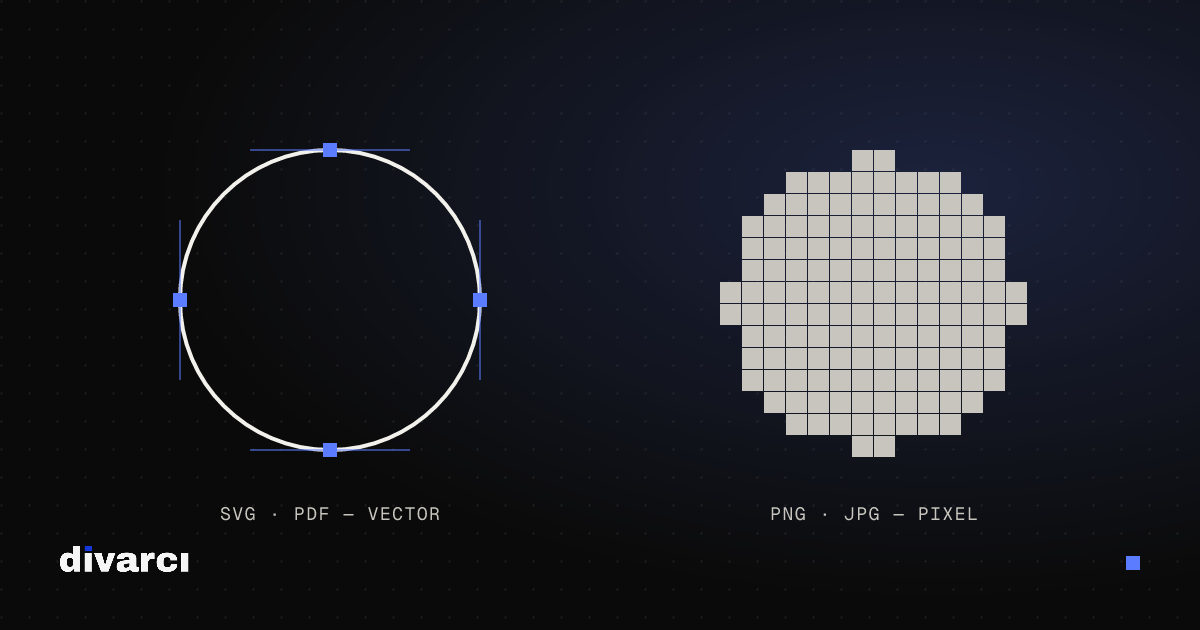
A logo appears everywhere, from websites and business cards to social media profiles and signs. Each use calls for a different file format. Trying to cover everything with a single JPG leads to blurry prints and logos stuck inside white boxes.
Vector vs pixel
- Vector files (SVG, PDF, AI, EPS) define shapes mathematically. However much you enlarge them, edges stay sharp.
- Pixel files (PNG, JPG, WEBP) are made of a fixed number of pixels. Enlarged beyond their size, they blur.
A logo's master file should always be vector. Pixel files are exported from it at the size you need.
Which format where?
| Use | Recommended format |
|---|---|
| Website | SVG; otherwise a transparent PNG |
| Social media profiles and posts | PNG (at the size the platform asks for) |
| Print, signage, merchandise | PDF or the vector format your printer asks for (AI, EPS) |
| Word, PowerPoint, email signature | Transparent PNG |
| Watermark on photos | Transparent PNG |
What a logo package should include
When delivering a logo, or asking an agency for one, these files make life easier:
- Vector master file (SVG and PDF; AI or EPS if your printer needs them)
- PNGs with transparent backgrounds (horizontal, stacked and icon-only versions)
- Separate color versions for light and dark backgrounds (e.g. white and black logos)
- Brand color codes: HEX and RGB (digital), CMYK and Pantone if available (print)
- The names of the typefaces used
Common mistakes
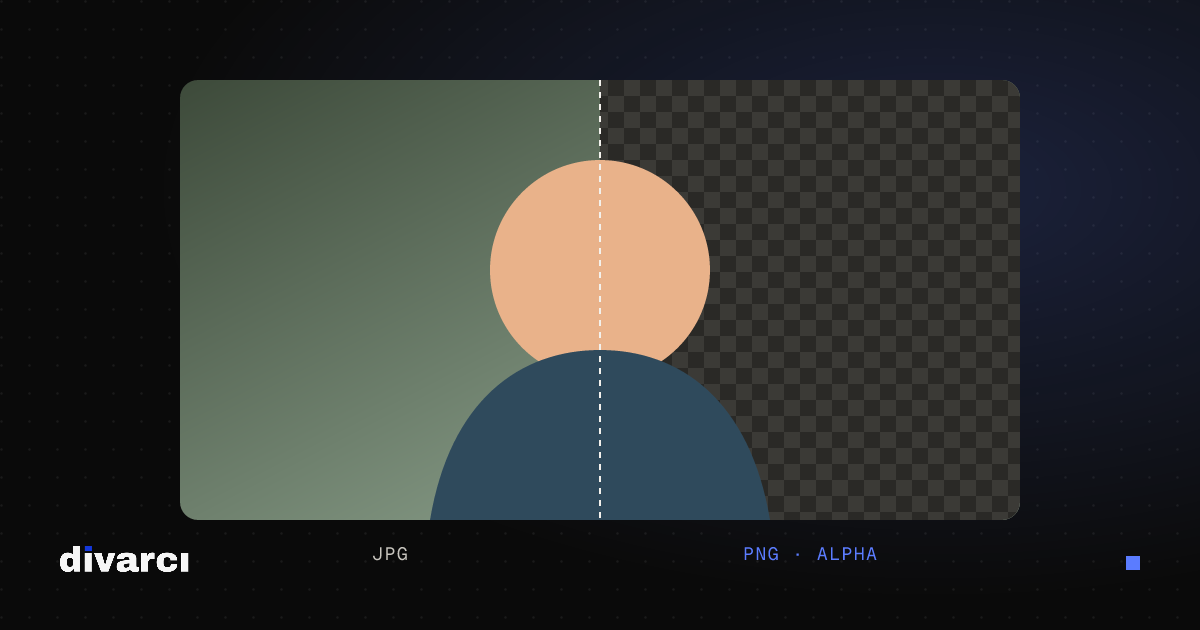
- Using a JPG logo: JPG doesn't support transparency, so on a colored background you get a white box around the logo. It also blurs sharp edges.
- Enlarging a small PNG: A 200-pixel logo downloaded from a website can't be used for a poster or sign; you need the vector source.
- Taking the logo from a screenshot: The resolution is low and the background comes with it.
- No single-color version: A dark logo disappears on a dark photo; prepare a white or one-color version.
Tools that help
Convert your logo between PNG, JPG and WEBP with the Image Converter, make a site icon from it with the Favicon Generator, and add it to your photos with the Add Watermark to Image.
More posts

Optimizing Images for Websites: A Guide to Faster Pages
Prepare your website images with the right size, format and compression so pages load faster and perform better in search.
How to Remove a Photo Background: A Practical Guide to Transparent PNGs
Shooting tips for clean background removal, edge settings, manual touch-ups and saving a transparent image in the right format.
Putting Documents into One PDF: Photos to PDF, Merging and Splitting
Turning documents photographed with a phone into a PDF, merging several PDFs and removing pages you don't need, for applications, email or archiving.