

Why Do Images Lose Quality on Instagram? 7 Tips for Sharp Posts
Why images uploaded to social media turn blurry, why text gets smudged, and what to do to keep your posts sharp.
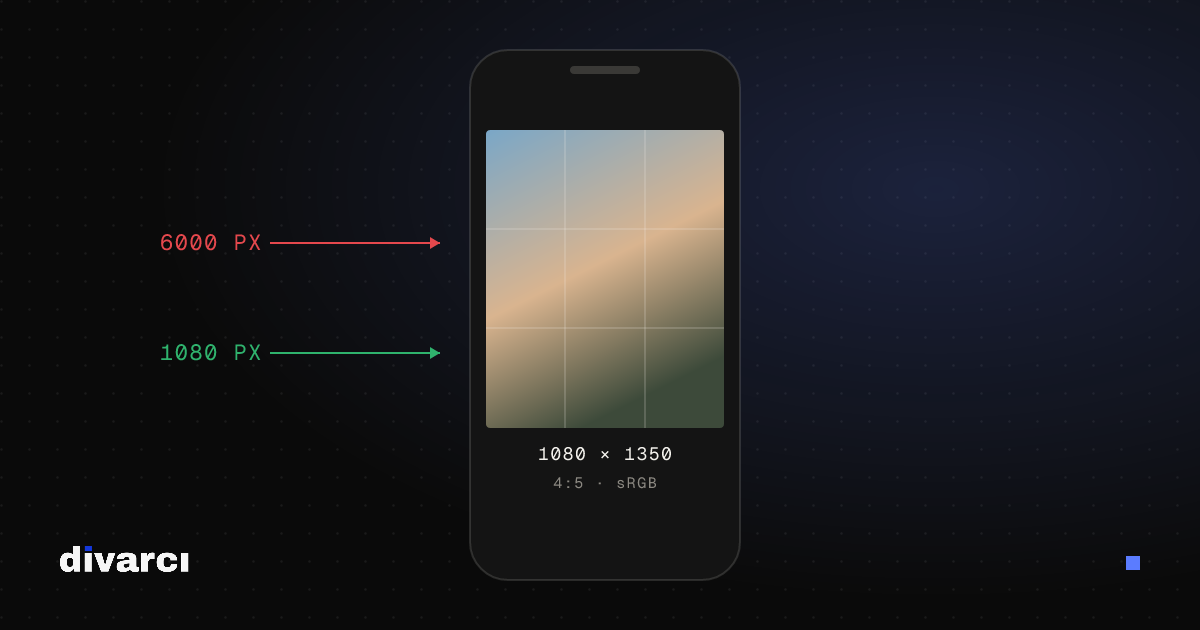
A design that looks sharp on your computer can look blurry, smudged or dull once posted. The main reason is that social platforms resize every uploaded image to their own dimensions and recompress it to save space. You can't stop this entirely, but you can reduce its effect a lot.
1. Design at the platform's size
Designing at the size the platform displays minimizes extra resizing. Instagram shows posts 1080 pixels wide; use 1080 × 1350 pixels for a 4:5 portrait post and 1080 × 1920 pixels for Stories and Reels. See the Social Media Image Sizes guide for current sizes on every platform.
2. Don't upload huge files
Uploading a 6000-pixel photo directly doesn't give better results; the platform still shrinks it to 1080 pixels, and you have no control over how. Resizing beforehand makes the result more predictable.
3. Don't upload tiny files either
Conversely, a 600-pixel image gets enlarged to 1080 pixels and turns blurry. Make sure the source image is at least as large as the target size.
4. Use PNG for text-heavy designs
Info cards, quotes and designs with a lot of text get smudges around the letters when saved as JPG, and the platform's compression makes it worse. Exporting these designs as PNG gives a cleaner starting point.
5. Use the sRGB color profile
Phones and browsers display color in sRGB. Images saved with another profile (e.g. Adobe RGB) can look dull or shifted after upload. Convert to sRGB when exporting.
6. Avoid very fine detail
Very thin lines, small text and dense patterns suffer most from compression. They're also hard to read on a phone; choose text sizes and line weights for a mobile screen.
7. Account for the interface
In Reels, Stories and TikTok, the username, caption and buttons cover the top, bottom and right of the image. Keep important text away from those areas.
Tools you can use
- Social Media Image Resizer: crops an image to every platform size at once.
- Reels & Story Safe Zone Checker: previews your design with the real interface.
- Image Compressor: shrinks files while keeping quality.
More posts
Optimizing Images for Websites: A Guide to Faster Pages
Prepare your website images with the right size, format and compression so pages load faster and perform better in search.
How to Remove a Photo Background: A Practical Guide to Transparent PNGs
Shooting tips for clean background removal, edge settings, manual touch-ups and saving a transparent image in the right format.
Putting Documents into One PDF: Photos to PDF, Merging and Splitting
Turning documents photographed with a phone into a PDF, merging several PDFs and removing pages you don't need, for applications, email or archiving.